How to Fix VMware 'Failed to Lock the File' Error
When your virtual machine crashes unexpectedly, the host system frequently leaves behind rigid lock files that stop the OS from booting back up. This guide covers how to quickly identify and permanently remove stale .lck directories without data loss—and critically, how to safeguard your broader host machine files once your virtual environment is operational again.
The "Failed to lock the file" error happens when a VMware session crashes, failing to automatically clean up its mechanical lock flag. To resolve it immediately, navigate to the folder where your virtual machine is stored, locate any directories ending in the .lck extension, and delete them manually. Upon restarting the VM, fresh, functioning locks will be generated.

In This Guide
- What Causes VMware Lock File Errors?
- VMware .lck File Anatomy and Identification Guide
- Remove VMware Lock Files Safely (Step-by-Step)
- Interactive Troubleshooting Quiz
- System Locks vs Cryptographic Security
- Securing Your Local Files with Folder Lock
- How to Lock Your Host Machine Files
- Free vs Paid Privacy Tools — Is It Worth Paying?
- Frequently Asked Questions
What Causes VMware Lock File Errors?
Virtualization platforms share hardware resources aggressively. To prevent a catastrophic scenario where two separate processes try to modify the exact same virtual disk (VMDK) concurrently, VMware deploys a highly strict file locking mechanism. As soon as a VM powers on, a mechanical lock directory is written to the drive.
When you initiate a graceful shutdown, VMware tidies up after itself by erasing these locks. However, during an abrupt host crash, a blackout, or when you are forced to kill an unresponsive process via Task Manager, the lock persists. The next time you attempt a boot, the hypervisor spots the old lock, presumes the disk is already in use by another entity, and blocks access with the notorious "VMware failed to lock the file" error.
Error Code Reference Table
The exact phrasing of the error depends heavily on your hypervisor environment. Use this reference to verify you are addressing a mechanical lock file complication.
| Environment | Common Error Message | Underlying Meaning |
|---|---|---|
| Workstation / Fusion | "Failed to lock the file" | A standard .lck folder persists from a hard crash. |
| ESXi Server | "Failed to lock the file 16392" | A host server retains a firm lock on the VMDK via the VMFS file system architecture. |
| Windows Host (Generic) | "VMware the process cannot access the file" | A background host process (commonly an aggressive antivirus or automated backup tool) is actively holding the VMDK open. |
| Any VMware Product | "Cannot open the disk - failed to lock the file" | The main virtual disk is locked and entirely unreadable for the boot sequence. |

VMware .lck File Anatomy and Identification Guide
Before executing any deletions, accurate identification is mandatory. Accidentally deleting the actual .vmdk (virtual disk storage) instead of the .lck folder will result in immediate, irreversible data loss of your virtual machine state.
What exactly is a .lck file?
Contrary to the name, VMware establishes lock directories, rather than just isolated files. When browsing your virtual machine's root folder (the directory you chose during VM creation, such as Documents\Virtual Machines\Ubuntu\), look for folders that mirror your disk name but end with `.lck`.
Ubuntu-VM.vmx
Ubuntu-VM.vmdk         <-- DO NOT DELETE: This is your actual data!
Ubuntu-VM.vmdk.lck     <-- SAFE TO DELETE: This is the mechanical lock directory
  └── M82345.lck       <-- The internal lock file housed within
Remove VMware Lock Files Safely (Step-by-Step)
Depending on your technical comfort level and whether you are running a desktop hypervisor or a bare-metal server, choose the appropriate resolution method below.
Method 1: Manual Interface Deletion (Windows & Mac)
This is the standard recovery path for users running VMware Workstation on Windows or VMware Fusion on macOS.
- Verify VMware is entirely shut down. Inspect Task Manager (Windows) or Activity Monitor (Mac) to confirm no rogue
vmware-vmxprocesses remain active. - Open your native file browser and navigate to the directory hosting your Virtual Machine.
- Scan for any specific folders ending in the
.lckextension (for instance,disk1.vmdk.lck). - Right-click the identified
.lckfolder(s) and select Delete. If you are cautious, move them temporarily to a backup location. - Relaunch VMware and command the VM to power on. The boot process should proceed unhindered.

Method 2: Command Line Purge (Linux / ESXi)
For administrators managing Linux hosts or ESXi servers, clearing stale locks is fastest via an SSH terminal. The following command recursively locates and destroys all lock directories strictly within the current path.
find . -type d -name "*.lck" -print0 | xargs -0 rm -rfCrucial Warning: Ensure you execute this command strictly within the isolated VM directory. Running it at the root storage level may destroy active locks for currently healthy, running virtual machines.
Method 3: Restarting Host Management Agents (ESXi only)
If you encounter the stubbornly persistent "Failed to lock the file 16392" error on an ESXi host, standard file deletion often fails because the core host daemon remains convinced it owns the process. The solution is bouncing the management agents.
- Enable SSH functionality on your ESXi host and authenticate as root.
- Execute the command:
/etc/init.d/hostd restart - Execute the command:
/etc/init.d/vpxa restart - Return to your vSphere client and re-attempt the VM power-on sequence.
Interactive Troubleshooting Quiz
If you are uncertain which resolution path aligns with your specific error, select the symptom you are currently observing below to receive an instant diagnosis.
What exact symptom are you observing?
Action: Utilize Method 1. Navigate your file explorer to the VM's storage directory and manually delete any folders that terminate in
.lck.
Action: Your host machine's antivirus suite or automated backup software is likely scanning the massive
.vmdk payload. Add your VM directory to your security software's exclusion list, wait five minutes, and retry.
Action: Utilize Method 3. Establish an SSH connection into the bare-metal host and gracefully restart the management agents (specifically hostd and vpxa).
System Locks Protect Virtual Machines. What Protects Your Real Data?
A VMware `.lck` file is simply a mechanical flag to prevent write-corruption. It offers absolutely zero cryptographic privacy. If someone gains unauthorized access to your Windows or Mac host machine, your sensitive personal documents are completely exposed.

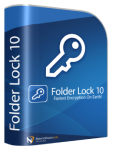
System Locks vs Cryptographic Security — Understanding the Difference
When dealing with local storage and virtualization, it is incredibly easy to confuse mechanical system permissions with authentic data privacy.
Mechanical System Locks (e.g., VMware .lck)
These are purely functional traffic cops. A python file lock, an nfs file lock, or a VMware `.lck` folder all operate on the exact same principle: they prevent two software processes from modifying a file at the exact same moment. They do not scramble data, they do not require user authentication, and as demonstrated above, anyone with basic file system access can simply delete them to bypass the restriction.
Cryptographic Data Security
Authentic data security relies on advanced cryptography. When you secure a directory with dedicated software like Folder Lock, the data is algorithmically scrambled using standards like AES 256-bit. Even if a rogue user bypasses the operating system login or pulls the hard drive out of the machine entirely, they cannot read the contents without your specific decryption key.
How Folder Lock Secures Your Host Environment
Once your virtual machines are running smoothly again, securing the sensitive data resting on your actual host operating system is the logical next step. While built-in OS tools offer basic protections, dedicated offline applications provide a much thicker layer of defense.
-
01
Kernel-Level Folder Hiding
For data that doesn't strictly need encryption but must remain invisible, Folder Lock utilizes a kernel-level driver to vanish files from the Windows Explorer interface entirely. These protected folders remain completely undetectable even if an intruder boots the machine into Safe Mode.
-
02
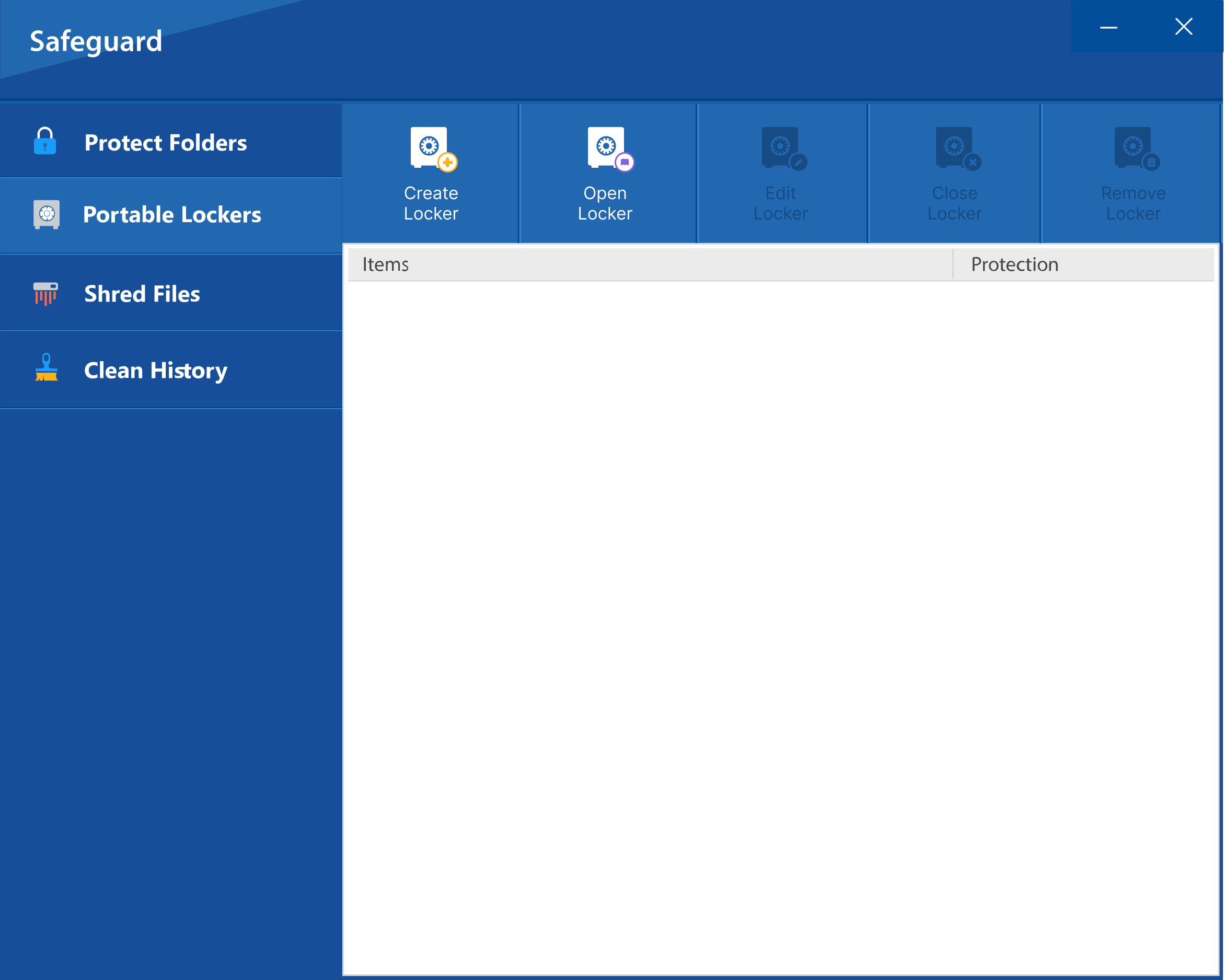
Portable USB Vaults (.flk)
Data frequently needs to travel. Users can generate self-contained, executable vaults (Portable Lockers) directly onto USB flash drives or external hard drives. If the physical drive is lost or stolen in transit, the encrypted contents remain impenetrable.
-
03
Securing the Cloud Pipeline
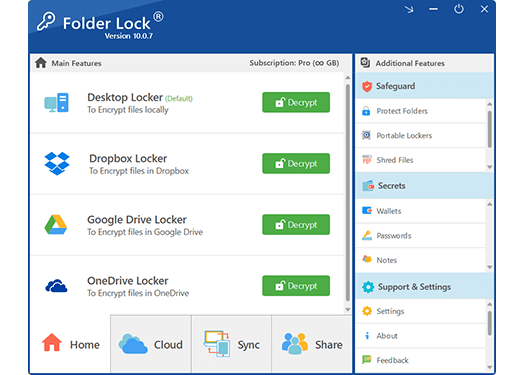
Trusting raw sensitive files to third-party cloud servers is inherently risky. Folder Lock integrates seamlessly with Dropbox, Google Drive, and OneDrive, but applies robust local AES-256 encryption to your files before the synchronization process occurs. The cloud provider only ever receives unreadable ciphertext.
-
04
The "Secrets" Manager
Not all sensitive data exists as a document. The software features dedicated encrypted environments for managing textual data, allowing users to securely catalog banking information, software serial keys, complex login credentials, and private notes.

How to Lock Your Host Machine Files with Folder Lock
If you want to move beyond VMware mechanical locks and apply actual cryptographic security to your host directories, the process takes only a few seconds.

-
Initialize the Secure Vault: Launch the Folder Lock application and authenticate using your master password. Upon entry, the software automatically provisions a secure Virtual Drive (typically mounted as the `Z:` drive).

- Transfer Sensitive Data: Open standard Windows File Explorer. Locate the sensitive documents, images, or client records you wish to protect. Drag and drop these files directly into the active `Z:` drive window.
- Engage the Lock: Return to the main Folder Lock interface. In the Desktop Locker panel, click the prominent red Encrypt button. The Virtual Drive will immediately dismount and vanish from your system, leaving your data heavily encrypted and entirely inaccessible to unauthorized users.
-
Optional: Erase the Originals: For maximum security, utilize the built-in Shredder utility (capable of executing up to the 35-pass Peter Gutmann standard) to permanently destroy the original, unencrypted copies resting on your hard drive.

Free vs Paid Privacy Tools — Is It Worth Paying?
When locking down your operating system, deciding between a free utility and a premium software suite comes down to the volume of data you manage and your need for cross-device flexibility.
Folder Lock (Free)
- AES 256-bit core encryption
- 1 GB maximum locker size
- Sync across 2 devices maximum
- Basic file shredding capabilities
- Automatic Windows history cleaning
Folder Lock Pro
- Unlimited locker storage capacity
- Sync across 5 devices (Win/Mac/iOS/Android)
- Create Portable Lockers for USB drives
- Kernel-level folder hiding (invisible in Safe Mode)
- Unlimited secure file sharing with other users